
Business schema is a type of structured data markup code you can add to your business’s website to make it easier for search engines to identify what type of organization you are and what you do.
When users search for businesses on Google Search or Maps, Search results may display a prominent Knowledge Graph card with details about a business that matched the query. When users query for a type of business, such as a restaurant, they may see a carousel of listings hosted by restaurant listing providers.
In this tutorial, you need to follow Three Object
- How To Setup Business Schema
- How to display Google reviews Automatically
- How to Test the Schema Validation
1) How To Setup Business Schema
1. First go to WordPress dashboard -> Structured Data -> Schema Types -> click on Add schema Type.

2. Once you select Local Business below option will appear. In these fields, you can select business type, Sub business type and you can enter other information like Brewery, Cafe Or Coffee Shop, Fast Food Restaurant, Ice Cream Shop and etc.
For example, I’ve selected Food Establishment type like below the screenshot

3. In this section, you need to set the condition for the specific Homepage, post or page or all posts where you want to show the Local Business scheme type.
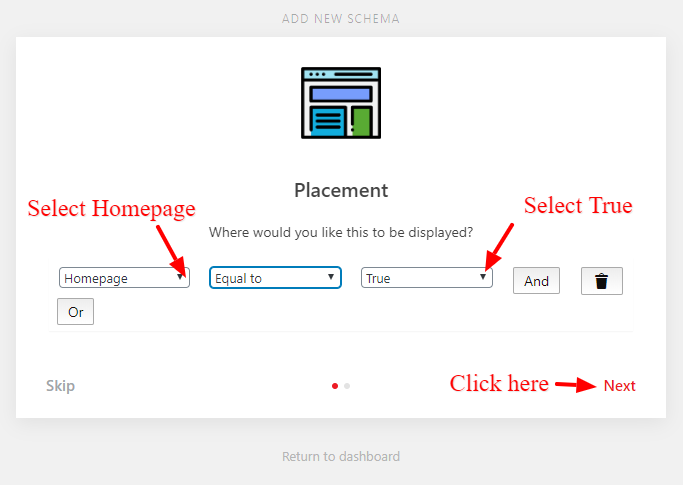
4. After selecting the placement click on next, congratulation! you’ve successfully set up the schema markup.

2) How to display Google reviews Automatically
If you want to display Google reviews automatically for this use our Review for Schema Plugin you can easily display review on your websites and which will help of that you can show your reviews in search results and for this, you need to follow the below steps.
1. How to Get Reviews Plugin
- First, you need to purchase and install Reviews for Schema plugin.
- For more details on how to download an extension for this Click Here
2. How to Install & Enter API Key
- After installing you will get license key need to enter this key go to WordPress Dashboard -> Structured Data -> Settings -> Reviews -> Reviews Module -> In “Reviews pro API Key” option enter the License key and click on “Activate” button.

3. How to Fetch Google Reviews
- If you want Google Review then check this option and enter the place ID you can display multiple reviews and click on the “fetch” button after that click on the “Save Changes” button.

4. Display Reviews on the Site
- Once you click on fetch button all reviews display on your reviews list page. You will find this option in the WordPress Dashboard -> Structured Data -> Reviews.

- By using this shortcode and parameters you can display the single and multiple reviews to more details follow this tutorial.
5. Wait for Google to index the Reviews
- Once Google search engines crawl your website in Google webmaster tool (search console) then all your reviews will appear in the Google search results
3) How to Test the Schema Validation
Google Structured Data Testing Tool.
Step 1: Open the Google Structured Data Testing Tool webpage. You will get 2 options “Fetch URL ” and “Code Snippet“.

Step 2: Choose the ” Code Snippet ” tab then copy and paste the schema markup code and Click ” Run Test “.

Step 3: As our Schema Markup coding was up to mark and liked by Google Structured Data Testing Tool we got Zero Error Report.

Step 4: If you have any error on your schema markup it will display error like below the screenshot.

Step 5: In your code have any “Error” or “Warning” is a smaller one. Do not to worry if you have made mistakes, as the Google Structured Data Testing Tool suggests you the cure for it.
Step 6: Choose the ” Fetch URL ” tab then Enter URL and Click ” Run Test “.

For more details of Test the Schema validation then Click Here
The Output of the Local Business Listing
Here’s an example of category searches like “Spanish restaurants” or entity searches like “Cascal” (a steak house).

That’s it for this tutorial!
We hope it helped you. If you have any feedback or questions or do you want us to create compatibility for any other schema type which isn’t listed in our plugin then you can request us we will surely implement it as soon as possible.
Just contact us here and we are always available for you.
